


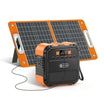
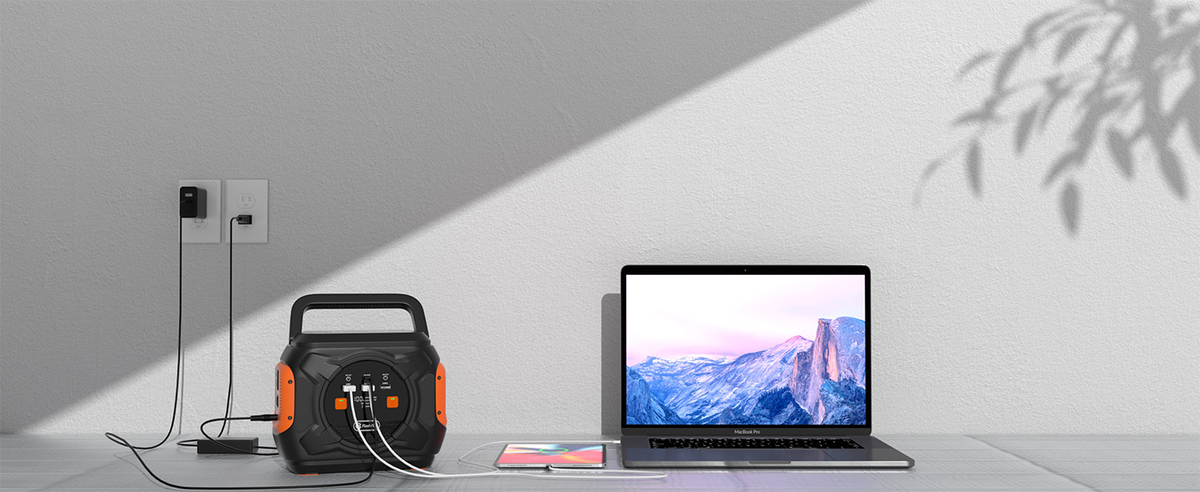
A documented USB-C charging path does not, by itself, establish the data and display connections needed by a docked laptop. Build separate records for power, laptop-to-dock communication, and the display connection. Each needs evidence for the exact ports, cable, and equipment. A station's output rating answers only part of the power question; it does not document a working desk setup.
This is a connection-planning worksheet, not a USB protocol tutorial or a dock compatibility recommendation. No exact laptop, dock, display, or cable model has been supplied, and no combination has been tested here.
Draw the power route and the work route separately
Start with the exact dock instructions and draw only connections they identify. For power, name the source, receiving equipment, relevant port, and required cable. Your proposed route may involve a dock power input or a laptop charging input; leave the route undecided until the equipment documentation specifies it.
On the same sheet, draw the laptop-to-dock connection and every peripheral needed for work. Add the display route as its own requirement. Name the dock's host-facing port as shown in its manual rather than picking a socket based on appearance. A connector that fits is not documentation for the task you want that connection to perform.
Use different labels for “power documented,” “data documented,” and “display documented.” These are evidence states, not claims that a particular USB version supports a feature. If the record contains only charging information, leave the other columns unresolved.
| Proposed connection | Power source and receiver | Host/peripheral or display requirement | Exact evidence to collect | Status |
|---|---|---|---|---|
| Station to the documented receiving input | Identify station output and permitted receiving port | Do not assign a data role from the power rating | Both devices' power specifications and exact cable instructions | Documented or unresolved |
| Laptop to dock host port | Record any documented charging role separately | Name laptop port and dock host-facing port | Matching laptop/dock requirements and host-cable model | Documented or unresolved |
| Dock to display | Record how the display is powered | Specify the required display connection and work configuration | Dock/display instructions and exact display cable | Documented or unresolved |
| Dock to required peripheral | Record any equipment power requirement | Identify the peripheral and required connection | Peripheral instructions and documented dock connection | Documented or unresolved |
Record the document title, revision, port label, and relevant page beside each line. If a manual refers to a cable supplied with the dock, identify that cable rather than substituting an unmarked one. If you cannot identify it, that line remains open.
What E103 and T300Pro specifications establish
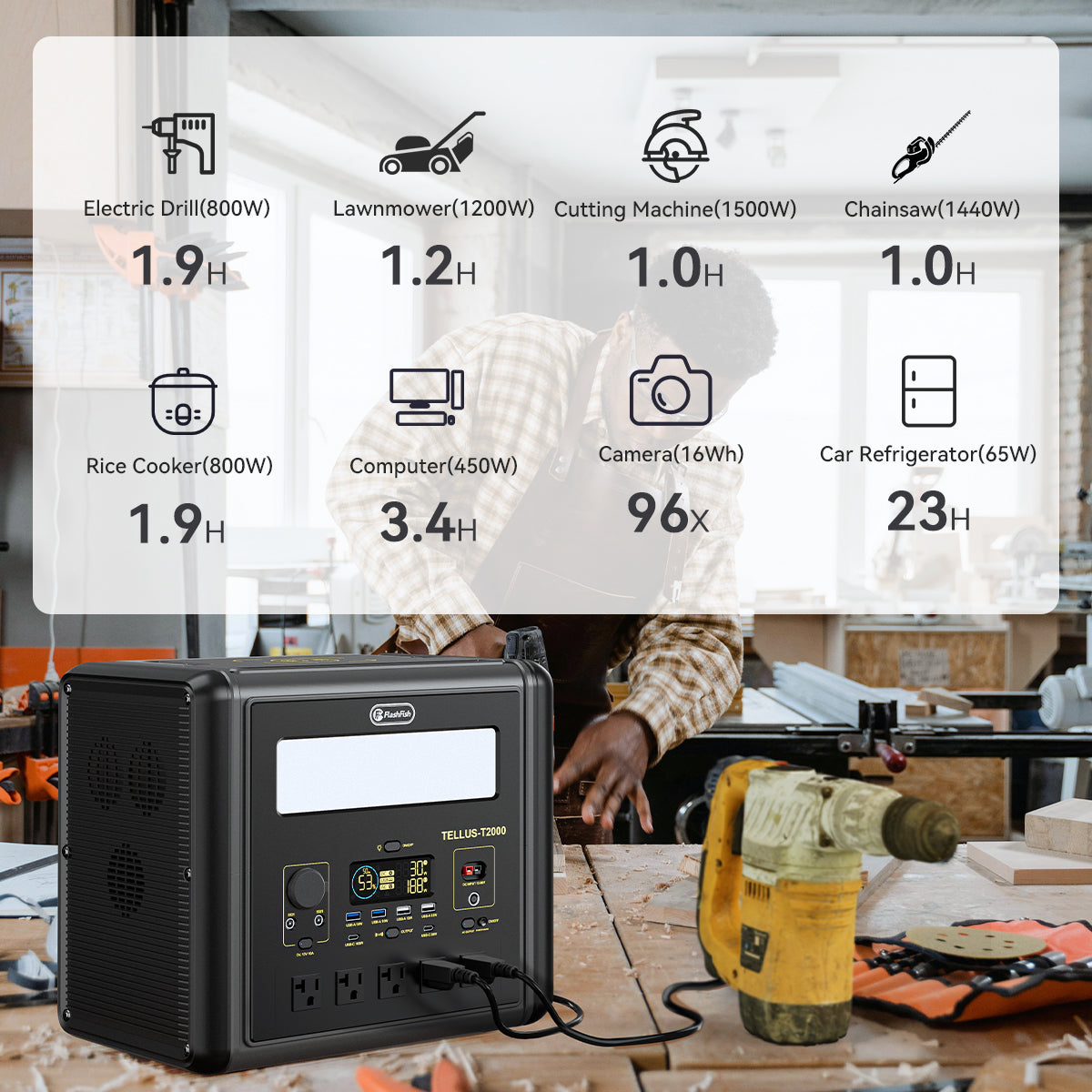
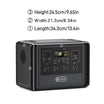
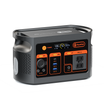
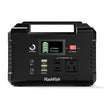
The FlashFish E103 USB specifications list one USB-C output up to 60W. T300Pro lists USB-C1 up to 100W and USB-C2 up to 30W. Keep those port names attached to their individual maximum ratings. These are station-output specifications, not promised laptop charging rates or a documented dock power budget.
Those output ratings provide a starting point for the power-source row. They do not supply the exact laptop's receiving requirements, the dock's permitted power arrangement, the host cable's documented capabilities, or the display configuration. No exact laptop, dock, display or cable documentation is available for this comparison, so those connection-specific values remain unknown.
For this worksheet, neither station is declared a working dock solution. A higher listed output cannot fill an empty data or display evidence column. Also, do not add the individual USB ratings into a claimed shared-output allowance without the applicable combined-output documentation.
The E103 reference manual describes a 230V AC version; it cannot establish the electrical behavior of a U.S. unit. This article proposes no AC workaround. The FlashFish U.S. User Guides explains exact-model and electrical-version matching. Use the matching original documents before making any equipment connection.
Compare two proposed setups by their missing evidence
Copy the same required work tasks into both candidate sheets. For each route, ask what is documented and what is still missing. A setup with a known power route and an unidentified host cable is incomplete. Another with a documented host connection but an unresolved power input is also incomplete; neither becomes complete by winning the other column.
Keep optional equipment separate from required equipment. If you can work without an external display, label that as a different work configuration. It may reduce what you must establish, but it is not proof that the original full desk setup works.
Do not troubleshoot an unclear topology by opening equipment, probing pins, or improvising wiring. Resolve the document and cable identities first. The useful outcome is a connection map you can explain, with unsupported routes left out.
Three hypothetical connection records
Example 1: Charging is observed, but the host cable is unidentified
Imagine a worker records that a laptop shows charging in one arrangement. The cable intended for the laptop-to-dock connection has no identifiable model or documentation. Keep the charging observation limited to its actual setup and leave the data/display path unresolved. Buying a station with a larger output number does not answer the cable-identification question.
Example 2: The host route is documented, but the power input is not
Imagine a dock manual identifies the host-facing connection and cable, but the worker has not checked its permitted power input. The host row can record that evidence while the power row remains open. Do not move the station cable between similarly shaped ports to discover the intended arrangement.
Example 3: The portable configuration changes
Imagine a worker removes an optional display and keeps only the documented laptop task. Create a new inventory for that reduced configuration and check its power requirements separately. The narrower plan can be evaluated on its own; it does not establish support for the display that was removed.
Frequently asked questions
Is a wattage marking enough to identify my host cable?
No. It does not provide the missing documentation for the data or display task. Record the exact cable model and the capabilities specified for the relevant connection rather than assigning them from a power marking.
Should the station be drawn as the dock's data host?
The E103 and T300Pro specifications cited here describe power outputs, not a documented dock-host connection. Keep the proposed laptop-to-dock route on its own line. Do not assign the station another role without explicit supporting documentation.
Can I estimate operating time once the map is complete?
A complete document map still does not measure energy consumption. A duration estimate needs evidence for the actual workload and usable energy under that arrangement. No runtime follows from the port ratings in this article.
Pack only the connections you can account for
Identify the laptop, dock, display, and every required cable. Fill each row using its exact instructions, then choose a station only after the power requirements are resolved. If a host cable or receiving input remains unidentified, resolve that item before spending on a different station. Keep the completed diagram with the equipment list so a later cable substitution is visible.
Method: station specifications and a documentation worksheet with hypothetical cases; no protocol certification, cable inspection, or compatibility test was performed.
For the broader mobile-work load plan, see the laptop field-work power guide. A load plan does not establish a dock's host or display connections.
Next step: Compare FlashFish E103 specifications with your requirements.

コメントを書く
このサイトはhCaptchaによって保護されており、hCaptchaプライバシーポリシーおよび利用規約が適用されます。